Body
How to avoid compatibility issues with Adobe Creative Cloud files
This article helps users prevent issues they can encounter when using different versions of Adobe Creative Cloud applications. This can happen when one version of an Adobe app is installed on SJU lab and classroom computers and then a different version has been installed on a personal computer. If a user begins work on an Adobe file on a lab computer and then wishes to complete the work on their personal device (or vice versa), it's important to follow the instructions in this article.
What version should I use?
Each summer ahead of the Fall semester, the latest version of Adobe apps are deployed to designated lab and classrooms. It's important to note that SJU will only update these apps to the latest major version each Summer. If a user wants to install any Adobe apps on their personal devices, this may cause compatibility issues depending on whether they plan to also use an SJU-issued lab computer to work on the same file(s).
If a user requires the use of both a personal and SJU device, it's important to install the same version on their personal device, which matches what is installed on an SJU device
How to check what version of an Adobe app is installed?
Use the process below to check the version in the lab or on your own computer. The example shown below is for Photoshop, but all Adobe applications work the same way.
- Launch Adobe Photoshop.
- MAC:
- Choose Photoshop from the Photoshop menu next to the Apple Logo (Figure 1)
- Click About Photoshop to see the version.
Figure 1:

- WINDOWS:
- Choose Help → About Photoshop → About PhotoShop.
- The pop-up window will show the current version number near the upper left-hand corner, below the product name (Figure 2)
Figure 2:

Install Older Versions of Creative Cloud Apps
Review the steps below on how to install a compatible version:
- Click the Creative Cloud icon, located in the Apple Menu Bar (MacOS) or the Windows Task bar (Windows OS) to open the Adobe Creative Cloud Desktop App (Figure 3)
Figure 3:

- Click the Apps option if it is not already open (Figure 4)
Figure 4:

- Click the drop-down menu next to the application you wish to install (Figure 5)
Figure 5:

- Choose Other Versions from the drop-down Menu (Figure 6)
Figure 6:

- Click Install next to the application version that you need (Figure 7)
Figure 7:

Important!
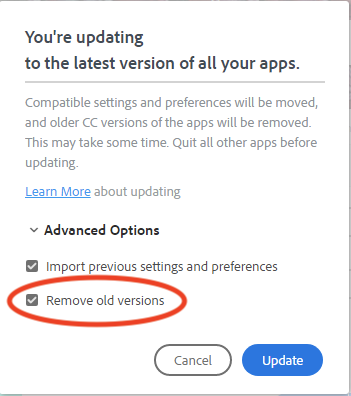
By default, when you install a new version of an application using the Creative Cloud Desktop App, previous versions of that application are uninstalled, leaving only the most recent version. To retain previous versions, deselect Remove Old Versions in the Advanced Options section of the updater interface. To see an example of this, view Figure 8 below.
Figure 8:
Other questions?
Please review our KB article found here to see what students are entitled to.
For instructions on how to launch any Adobe apps that are installed, please see our KB article found here.
If for some reason there is a lab or classroom location that requires additional Adobe apps to be installed, please work with your professor or an administrator of the area you are in, so that a request can be submitted here.